UPDATED - How To Online Redeem or Sell Canara Robeco Mutual Fund?


Finance Guru Speaks:  This article will provide you *UPDATED* Steps on how you can Online Sell or Redeem Canara Robeco Emerging Equities Fund units. 


The steps mentioned in the old article How To Online Redeem or Sell Canara Robeco Mutual Fund? are no longer valid due to changes in the Mutual Fund website.

The mentioned Steps can be applied to sell any other Mutual Fund from this fund house.

New Steps to follow to Online Redeem or Sell Canara Robeco Mutual Fund Units:-


1. Open Canara Robeco Mutual Fund home page after clicking here

2. Provide your Username and Password and click on SIGN IN button. You need to authenticate using the OTP received on your registered Mobile & Email address:-
Canara Robeco Mutual Fund Login
3. On the Home Page, Click on Transact Here -> Redeem, as shown below. Declare that you are not a US or Canada Resident:-
How To Online Redeem or Sell Canara Robeco Mutual Fund

4.  Select the Folio No. and click on CONTINUE button:-
How To Online Redeem or Sell Canara Robeco Mutual Fund
5. Select Mutual Fund Scheme. In this article, we are selling Canara Robeco Emerging Equities Fund:-
How To Online Redeem or Sell Canara Robeco Mutual Fund
6. Select Redemption Type as "Amount in Rupees" and Enter the Redemption Amount and click on CONTINUE button:-
How To Online Redeem or Sell Canara Robeco Mutual Fund
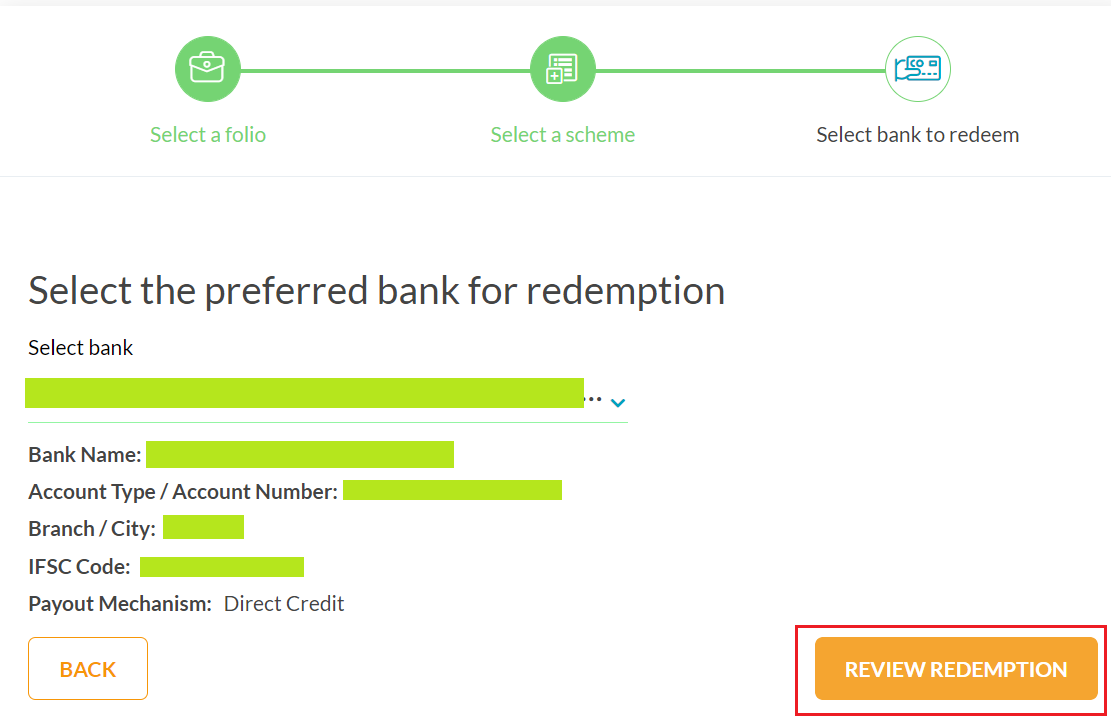
7. Select your registered Bank where the Redeem Amount will be credited by the Mutual Fund House and click on REVIEW REDEMPTION button:-
How To Online Redeem or Sell Canara Robeco Mutual Fund
8. Review the Redemption details. Accept Terms & Conditions. Select the radio button of your registered EMail & Mobile No. to get the OTP for verifying this Redemption Transaction. 
How To Online Redeem or Sell Canara Robeco Mutual Fund
9. Once everything is done including OTP Verification, you can click on CONFIRM TRANSACTION button to complete this Redemption Transaction:-
How To Online Redeem or Sell Canara Robeco Mutual Fund

Congratulations on your successful Online Redemption of Canara Robeco Emerging Equities Mutual Fund.

The Mutual Fund amount will be directly credited to your Registered Bank Account.

Images Courtesy: Canara Robeco Mutual Fund Website

How To Online Generate Nippon (formerly Reliance) Mutual Fund Account Statement?


Finance Guru Speaks: This article will provide UPDATED* Steps on how to generate Nippon Mutual Fund (formerly known as Reliance Mutual Fund) Account Statement Online.

The steps mentioned in the old article How To Online Generate Reliance Mutual Fund Account Statement? are no longer valid as Reliance Mutual Fund is now known as Nippon Mutual Fund.

You need to have a valid email ID registered against your Nippon Mutual Fund Account. You can register your Email ID at the time of Mutual Fund purchase from this Fund house.

If your Email ID is not registered, then kindly visit Nippon MF branches or their Registrar KFintech office to register it. 


Here is how you can generate or get your Nippon Mutual Fund Account Statement Online:-


1. Visit Nippon Mutual Fund Home Page by clicking here.

2. As shown below, Under Investor Service section, go to Account Statements -> Get Account Statement:-
Reliance Mutual Fund - Online Account Statement
Click to enlarge - Nippon Mutual Fund - Online Account Statement

3. On the Next Screen, provide Statement Period (From and To Dates), Folio Number, and security Captcha code. Click on SUBMIT button:-
Reliance Mutual Fund - Online Account Statement
Click to enlarge - Nippon Mutual Fund - Online Account Statement

4. You will get a successful message as below:-
Reliance Mutual Fund - Online Account Statement
Click to enlarge - Nippon Mutual Fund - Online Account Statement

Congratulations! You have successfully generated your Nippon Mutual Fund Account Statement online and you will receive an Account Statement on your registered Email box within few minutes.
Reliance Mutual Fund - Online Account Statement
Click to enlarge - Nippon Mutual Fund - Online Account Statement

Images Courtesy: Nippon Mutual Fund Website


Also Read:

More Articles About Mutual Funds

How To Online Switch Funds In Mirae Asset Mutual Fund


Finance Guru Speaks:
This article will guide you on how you can Switch your Mutual Funds Units or Amount in Mirae Asset Mutual Fund.

If you are an existing Mirae Asset Mutual Fund investor, then first of all get registered to its Mirae Asset Mutual Fund website. You can follow the options as mentioned here.

In this article, we will provide steps for Switching from Mirae Asset Dynamic Bond Fund (SOURCE) to Mirae Asset Hybrid - Equity Fund (TARGET). However, you may select any other Mutual funds from this fund house, steps will remain the same.

Steps to follow to Switch online in Mirae Asset Mutual Fund:-


1. Open Mirae Asset Mutual Fund website and provide your User ID, Password & Generated OTP and click on LOGIN button.:-
Mirae Asset Mutual Fund Login Page

2. On the Home page, select your Folio Number and click on Transact Now, as shown below:-
How To Switch Funds In Mirae Asset Mutual Fund
Click to enlarge - How To Switch Funds In Mirae Asset Mutual Fund

3. On the Next Screen (My Portfolio), Click on Choose dropdown against your Source Mutual Fund (Mirae Asset Dynamic Bond Fund), as shown below:-
How To Switch Funds In Mirae Asset Mutual Fund
Click to enlarge - How To Switch Funds In Mirae Asset Mutual Fund

4. Now, click on Switch option:-
How To Switch Funds In Mirae Asset Mutual Fund
Click to enlarge - How To Switch Funds In Mirae Asset Mutual Fund

5. On the Next Page (Switch), select Transact option 
for the Mutual Fund Scheme as Mirae Asset Dynamic Bond Fund:-
How To Switch Funds In Mirae Asset Mutual Fund
Click to enlarge - How To Switch Funds In Mirae Asset Mutual Fund

6. Select your Target Mutual Fund Scheme (Mirae Asset Hybrid Equity Fund - Direct Mode) as shown below and click on GO button:-
How To Switch Funds In Mirae Asset Mutual Fund
Click to enlarge - How To Switch Funds In Mirae Asset Mutual Fund

7. On the Next page, provide the Switch details (whether you want to fully or partially switch your Source Fund, Switch Amount or Units, etc.) and click on SUBMIT button as shown below:-

How To Buy Direct Mutual Funds in Zerodha Coin?


Finance Guru Speaks: This article will guide you on how to Buy Mutual Funds in Zerodha Coin.

How To Buy Mutual Funds in Zerodha Coin


As per the Website- Zerodha Coin is India's largest direct mutual fund platform that lets you buy direct mutual funds online with no commission passback, directly from asset management companies.

Zerodha, as a Trading and Demat Account, has gained very wide popularity because of very low-cost trading and ease of use. If you don't have the Zerodha account, then you can open it through this
LINK. It is very easy to open a Demat Account in Zerodha.

Steps to Buy Mutual Funds in Zerodha Coin:-


1. Login to Coin by Website or Mobile App. In this article, we have purchased Mutual Funds via Coin Android App through Smartphone.
How To Buy Direct Mutual Funds in Zerodha Coin
How To Buy Mutual Funds in Zerodha Coin
2. On the Home Page, go to the Explore Section to search your desired Mutual Fund to be purchased, as shown below:-
How To Buy Mutual Funds in Zerodha Coin
Click to enlarge - How To Buy Mutual Funds in Zerodha Coin

3. On the Next Screen, start typing the Mutual Fund name. As an example, we are buying Axis Liquid Fund - Growth option - Direct Plan. The steps mentioned can be applied to all other Mutual Funds as well.
Click on the Fund Name as shown below:-

How To Buy Mutual Funds in Zerodha Coin
Click to enlarge - How To Buy Mutual Funds in Zerodha Coin
4. On the Next Screen, click on the Buy button:-
How To Buy Mutual Funds in Zerodha Coin
Click to enlarge - How To Buy Mutual Funds in Zerodha Coin

5. On the Next Screen, enter your investment amount in the multiple of INR500 (Example - 10000, 5500, etc.) and again click on the Buy button:-

How To Online Change Email Address In Axis Mutual Fund?


Finance Guru Speaks: This article will guide you on how to change or update your Email ID online in Axis Mutual Fund.

How To Update Email ID In Axis Mutual Fund

Please make sure to register your Mobile No. against your existing Folio to change or update your Email Address online in Axis Mutual Fund.

Steps to online update or change your Email ID in Axis Mutual Fund:-


1. Visit Axis MF Home Page by clicking here.


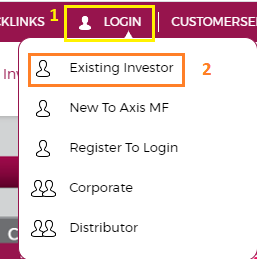
2. As shown below, click on LOGIN -> Existing Investor. 
Axis Mutual Fund - Change Email Address
Note: If you do not have Login details to access the Axis Mutual Fund website, then you can register your existing Folio details by clicking this link - Register to Login


3. Login by using your PAN details (or existing EMail ID) and generating OTP in your registered Mobile No. Click on Login:-
Axis Mutual Fund - Change Email Address
4. In the Home Page, check the top right-hand side of the screen. Click on the Arrow mark and then My Profile, as shown below:-
Axis Mutual Fund - Change Email Address
5. Click on the Pencil Icon against your Existing Email ID. And then enter your New Email Address and click on Save. It is shown as below:-

Axis Mutual Fund - Change Email Address
6. You will receive an OTP on your registered Mobile No. Enter this OTP and click on Confirm:-
Axis Mutual Fund - Change Email Address

Congratulations! You have successfully updated your Email ID in Axis Mutual Fund.
Axis Mutual Fund - Change Email Address

Images Courtesy: Axis Mutual Fund


Please help to like, share and comment on this article over your Social Networks. Thanks.


COVID19 - Change In Mutual Funds Cut-Off Timings


Finance Guru Speaks: This is important information regarding a temporary change in NAV Cut-Off timings for Mutual Funds Operations.


Attention: All the Mutual Funds Investors!🙏

With reference to RBI Press Release dated April 03, 2020 and AMFI communication dated April 06, 2020, it has been decided by Mutual Fund Houses to revise the cut-off timing for both Subscription and Redemption in various mutual fund schemes for a temporary period effective from April 7, 2020 to April 17, 2020 (both days inclusive).

  • Subscription Operations = Purchase, SIP, Switch, etc.
  • Redemption Operations = Sell/Redeem, SWP.

The revised cut-off timings are mentioned below:-


Mutual Funds Change in Cut-Off Timing
Click to enlarge - Mutual Funds Change in Cut-Off Timing
I would like to reiterate that this is a temporary change and only applicable for the period effective from April 7, 2020 to April 17, 2020 (both days inclusive).


Please help to like, share and comment on this article over your Social Networks. Thanks.


Also read:

How To Download Consolidated Mutual Fund Account Statement Online?


Finance Guru Speaks: This article will provide you UPDATED* steps on how you can download the Consolidated Mutual Fund Account Statement online free of cost. 


NOTE: The steps mentioned in the Old Article - How To Download Consolidated (CAMS+Karvy+FTAMIL+SBFS) Mutual Fund Account Statement Online? are no longer valid due to changes in the CAMS website. Hence, I am writing this new article.


The important guideline is to register your Email ID in all your Mutual Funds accounts so that using this Email ID as an identifier, all your folios statements (of all the mutual fund houses) can be consolidated and downloaded.

Please follow the below steps to download the consolidated Mutual Funds Account Statement:-


     1. Open CAMS Website and accept the Terms & Conditions.

2. Provide details like Statement Type, Statement Period, Folio Listing (to include or exclude zero balance folios), registered Email ID, PAN (not mandatory), and Password to open the PDF statement.

CAMS, KFintech, FTAMIL - Consolidated Mutual Fund Statement
(Click to enlarge) CAMS, KFintech - Consolidated Mutual Fund Statement
 3.      Click on Submit button as shown above.
CAMS, KFintech, FTAMIL - Consolidated Mutual Fund Statement
CAMS, KFintech - Consolidated Mutual Fund Statement

Congratulations!! You have successfully placed your request to receive a Consolidated MF statement in your registered Email ID.

Please check your Email ID. You should have received your Account Statement in PDF format (within 10 mins to few hours) and it can be opened by the Password which you have provided in Step 2. 👍

Images Courtesy: CAMS Website

Please help to like, share, and comment on this article over your Social Networks. Thanks.


How To Download Consolidated (CAMS+Karvy+FTAMIL+SBFS) Mutual Fund Account Statement Online?


NOTE: The Steps mentioned in this article are no longer valid due to changes in the CAMS website. I have written an UPDATED Article to share the new Steps to get the Consolidated Account Statement. 

Please visit the New Article by clicking here - How To Download Consolidated Mutual Fund Account Statement Online?


You can ignore the below Steps and check the New article link. 🙏
---------------------------------------------------------------------------------------------
Finance Guru Speaks: This article will guide you on how you can download Mutual Fund Consolidated Account Statement online free of cost.

The important guideline is to register your Email ID in all your Mutual Funds accounts so that using this Email ID as an identifier, all your folios statements (of all the mutual fund houses) can be consolidated and downloaded.

Please follow the below steps to download the consolidated account statement:-


1.      Open CAMS Website.
2.      As shown below, click on CAS - CAMS, Karvy, FTAMIL, SBFS link under Mailback Services:-


CAMS, Karvy, FTAMIL, SBFS Consolidated Mutual Fund Statement
Provide details like Statement Type, Statement Period, Folio Listing (to include or exclude zero balance folios), registered Email ID, PAN (not mandatory) and Password to open the PDF statement.

3.      Click on Submit button.
CAMS, Karvy, FTAMIL, SBFS Consolidated Mutual Fund Statement

Congratulations!! You have successfully placed your request to receive a Consolidated MF statement in your registered Email ID.

Please check your Email ID after sometime (time is not defined, can vary from 20 mins to few hours). You should have received the PDF statement.

Snapshot of the received consolidated account statement in my mail box:-

CAMS, Karvy, FTAMIL, SBFS Consolidated Mutual Fund Statement
As per CAMS website - CAMS, Karvy, FTAMIL and SBFS have come together to provide great convenience to investors by allowing them to see a consolidated view of their portfolio as a Mailback Statement.
If you have registered an email address in your folios across Funds serviced by CAMS, Karvy, FTAMIL and SBFS, you can use this Mailback Service to obtain a consolidated PDF Account Statement at your registered email address. For reasons of security the statement will be encrypted using the password provided by you, and emailed only to the address provided earlier in your application form.

Images Courtesy: CAMS Website